AI Chatbot Conversations Archive Explained
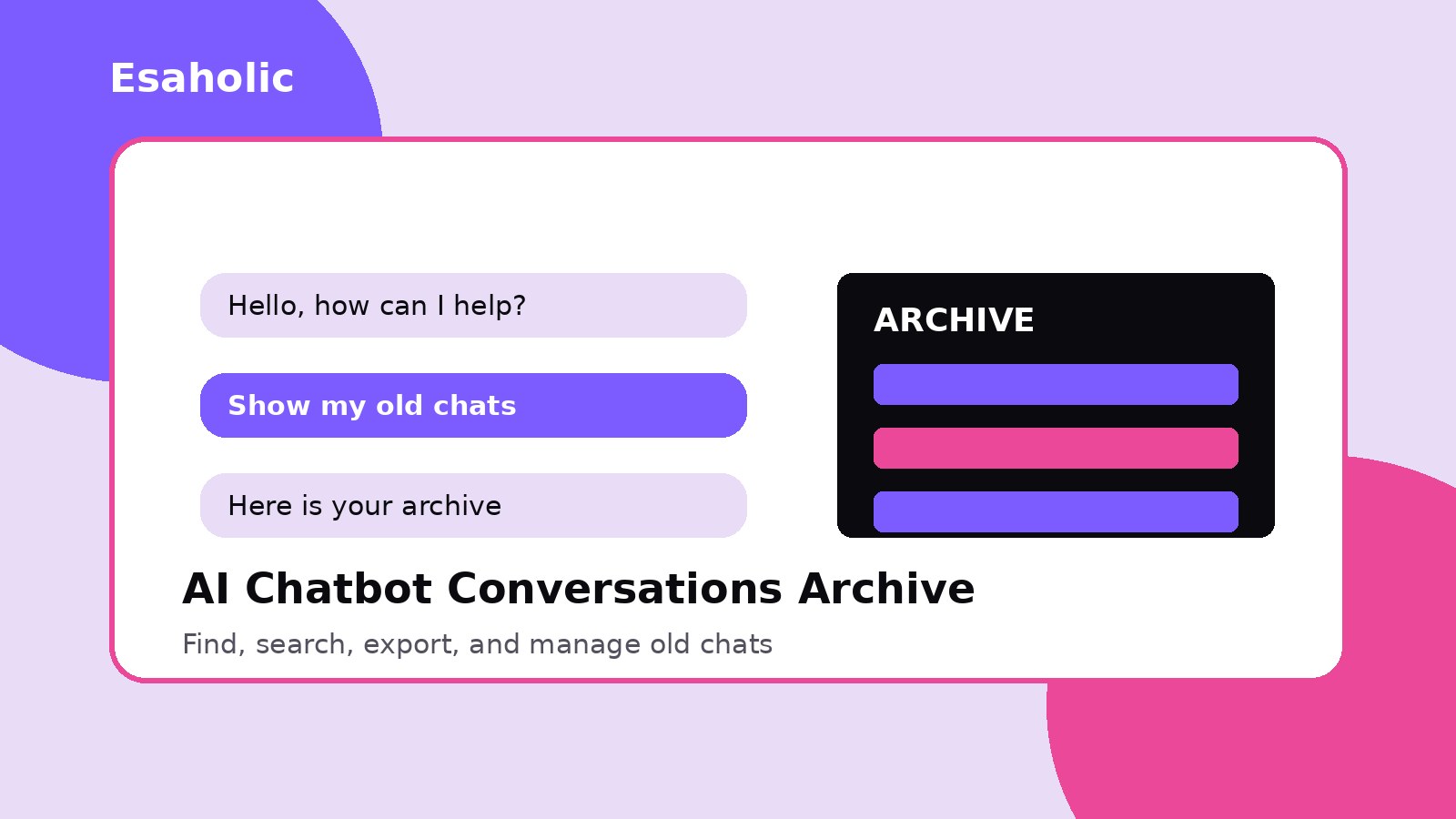
An ai chatbot conversations archive is the saved record of your past chats with a chatbot. You ask a question, the chatbot answers, and the conversation stays saved so you can return to it later. Without an archive, every useful answer would vanish the moment you closed the window. With an archive, you can reopen an old chat, copy a good answer, continue where you stopped, or share the result with a colleague.
Most people first meet a chatbot conversation history by accident. They open a chatbot app, see a list of old chats on the side, and realize last week work is still there. That list is the archive. It usually shows chat titles, dates, and a short preview. Some archives group chats into folders, some let you search them, and some let you export them as files. The exact layout differs from product to product, but the purpose stays the same: keep your past conversations useful instead of lost.
This guide explains what a conversations archive is, how you find, search, export, and organize old chatbot chats, how privacy and deletion work, and how businesses use saved chats well. You will also learn common mistakes, such as pasting private details into a chat you later forget to delete. Read it once, and you will handle chatbot chat history with confidence on any platform.
What a Conversations Archive Is
A chatbot is a computer program that talks with people through text. A conversation is one full exchange: your messages plus the chatbot replies, in order. An archive is a stored collection of those conversations. Think of it like an email inbox for chats. New chats arrive at the top, old chats sit below, and you can open any one of them again. Some products call it history, some call it past chats, and some call it an archive, but all three names point to the same idea.
Each saved record usually holds more than the words you see. It holds the date and time of each message, the title of the chat, and sometimes files you shared, such as images or documents. Business chatbots may also hold labels, such as support, sales, or complaint, and notes from staff. These extra details help teams find a chat fast and understand its context, which means the background that explains why the chat happened, without rereading every message.
Archives differ in one important way: some save chats by default, and some save them only when you turn history on. If history is off, the chatbot may still answer you, but it will not keep the chat for later. Always check the history setting before an important chat. A two minute check can save hours of rework later. For a plain background on chatbots themselves, IBM explains chatbots and how they work.

How to Find Old Chatbot Chats
Finding an old chat starts in the same place on most products: the sidebar or menu. Open the chatbot app or website, sign in to the same account you used before, and look for a list named History, Past chats, or Archive. On a phone, the list often hides behind a menu button at the top corner. On a computer, it usually sits on the left side of the screen. If you used the chatbot without signing in, your chats may live only on that one device or browser, and they may disappear if you clear browser data.
Once you open the list, scan titles and dates first. Many chatbots title a chat from your first message, so a chat that starts with a clear question is easier to find later. If titles look vague, open the most likely chats and skim the first few messages. You can also sort or filter by date on many products. For example, you might filter to last month, then look for the week you remember. This simple habit beats scrolling through hundreds of chats one by one.
If you cannot find a chat at all, check three things. First, confirm you signed in with the right account, because a work account and a personal account hold separate histories. Second, check whether history was on at the time, because chats from a history off period may never have saved. Third, check the archive or trash folder, because some products move old chats there instead of deleting them. A chat in the archive folder is still recoverable, while a fully deleted chat usually is not.
How to Search Chatbot Chat History
Search turns a long archive from a pile into a tool. Most chatbots offer a search box above the chat list. Type a key word from the conversation, such as a product name, a person name, or a rare phrase you remember. Rare words work better than common words, because a search for "report" may return fifty chats, while a search for a project name may return two. If the product supports it, combine a word with a date range to narrow results further.
Good search habits start before you search. Give chats clear titles when the product allows renaming, and rename important chats right after you finish them. A title such as "Refund policy draft for March launch" beats an automatic title such as "Hi there" every time. Pin or star chats you return to often, so they sit at the top of your list. These small habits take seconds, and they pay back every time you need an old answer in a hurry.
Some archives also search inside message text, while others search titles only. If your search returns nothing, try a different word from the same chat, or try a shorter word. For example, if "quarterly revenue breakdown" finds nothing, try "revenue" alone. If you still find nothing, open chats from the right week and skim them. Search tools help a lot, but they cannot find a chat that was never saved or that sits under a different account.

How to Export Chatbot Conversations
To export chatbot conversations means to take them out of the chatbot app and save them as files you own. People export chats to keep a record for work, to back up important work, to share a result with a team, or to move to a new tool. Common export paths include a download button inside a single chat, a share link that creates a readable page, or a full data export in account settings that packages many chats at once.
Export formats differ. A text file is simple and easy to read. A PDF file keeps layout neat for sharing or printing. A data file, such as JSON or CSV, suits teams that want to study many chats at once, because a program can read and sort it. JSON is a plain text format that stores structured data, such as messages with dates, in a readable form. CSV is a spreadsheet style format with rows and columns. Choose text or PDF for reading, and choose a data file only when you plan to analyze or import the chats elsewhere.
Before you export, check what the file will contain. Some exports include only the chat text, while others include dates, titles, and files you shared. After you download, open the file and confirm the full chat is there. Then store it safely, because an exported chat can contain private details. Keep work exports in a work folder with proper access, not on a shared desktop. A clear export habit protects both your work and your privacy.

What Each Chatbot Conversation Record Holds
A chatbot conversation record is more than a transcript. The table below shows the parts you will meet most often, what each part means, and why it matters when you search or export later.
| Part of the record | What it holds | Why it matters |
|---|---|---|
| Messages | Your questions and the chatbot replies, in order | The core value: the answer you may need again |
| Date and time | When each message was sent | Helps you find chats from a known week or day |
| Title | A short name for the chat, often from the first message | Clear titles make search and scanning much faster |
| Files and images | Documents or images shared inside the chat | Exports may or may not include them, so check before you rely on them |
| Labels or folders | Tags or groups set by you or by a business team | Labels group related chats, such as support or sales |
| Settings snapshot | Model or mode used, when the product records it | Explains why an answer looks a certain way later |
Business records add more fields. A support chatbot may record the buyer ticket number, the staff member who took over, and the final outcome, such as resolved or escalated. Escalated means passed to a human specialist because the chatbot could not finish the task. These fields help managers measure quality, train staff, and spot repeated problems. Personal archives rarely need this much detail, but the same idea applies: a few clear labels today save a long search tomorrow.

How to Organize Your Archive
A tidy archive saves time every week. Start by renaming important chats with clear titles that state the topic and the purpose. Next, create folders or labels for your main areas, such as work, study, projects, and personal. Move finished chats into an archive folder so your active list stays short, and keep only current work in view. This mirrors how a tidy email inbox works: active items in front, finished items filed away, junk deleted.
Review your archive once a month. Delete chats you no longer need, especially chats with test messages or repeated tries. Keep chats that hold final answers, approved drafts, or decisions you may need to prove later. For teams, agree on simple naming rules, such as starting support chats with the ticket number and project chats with the project name. Shared rules help anyone on the team find a chat without asking the original author.
Backups matter for important work. If a chat holds a final draft, a key decision, or a record you must keep, export it and store the file with your other work documents. Do not rely only on the chatbot app, because accounts close, products change, and history settings change. A short monthly review plus an export habit gives you a reliable archive without much effort.

Privacy and Deletion: What You Should Know
Privacy is the most important part of managing chatbot chat history, because chats often hold details people forget they shared. Never paste passwords, full bank details, identity numbers, or private health facts into a chatbot chat. Even when a product promises strong security, a saved chat is a record that can be seen by anyone with account access, exported by mistake, or shown on a shared screen. Treat every chatbot chat as a written record, not a private spoken talk.
Deletion usually works in two stages. First, you delete a chat, and it leaves your visible history. Second, the service may keep a copy for a limited time for safety, abuse checks, or legal reasons. The exact period differs by product, so read the privacy policy before you trust deletion alone for sensitive chats. Major products explain these controls in their help pages. For example, OpenAI explains data controls and chat history options for its chatbot, including how history settings affect saved chats.
Use these privacy habits every day. Turn history off for chats that hold sensitive work, when the product offers that choice. Delete test chats and chats with personal details as soon as you finish them. Sign out on shared devices, and use a strong, unique password with two step sign in for your chatbot account. Two step sign in means the service asks for a second proof, such as a code from your phone, in addition to your password. These habits cost little time, and they protect you far more than any cleanup after a leak.

Business Uses of Saved Chats
Businesses gain real value from chatbot conversation records when they use them with care. Support teams review old chats to find repeated questions, then they write better help pages and fix the root cause, which means the original problem behind many complaints. Sales teams study which questions buyers ask before they purchase, then they improve product pages and answers. Training teams use real, anonymized chats, which means chats with names and personal details removed, to teach new staff how good answers sound.
Quality checks also rely on archives. A manager can sample chats each week, check answer accuracy, tone, and completeness, and coach the team or improve the chatbot. Product teams spot new buyer needs early: if many buyers ask for one feature, that pattern shows up in chat records before it shows up in sales data. This is one reason AI chatbot development services now treat conversation records as a core feature, not an afterthought, and why AI agent tools that keep records across tasks help teams follow a job from first question to final result.
Businesses must still respect privacy law and buyer trust. Collect only the chat data you need, tell buyers clearly that chats are saved, limit staff access to records, and delete records on a clear schedule. A business that explains its archive policy honestly earns more trust than one that hides it. Keep retention, which means how long you keep records, short for casual chats and longer only for records with a real business or legal need.

Common Mistakes to Avoid
The first mistake is treating the archive as private by default. It is not. Anyone with your account access can read it, so guard your account well. The second mistake is never cleaning the archive. Hundreds of test chats bury the few chats that matter, so search slows and good answers hide. The third mistake is relying on one copy. If the chatbot account closes or history turns off, unsaved work disappears, so export important chats.
The fourth mistake is sharing exported chats without checking them. An export may include personal details from the middle of a long chat that you forgot. Read the export before you send it, and remove private parts. The fifth mistake is using vague titles for every chat. A list full of chats titled with greetings helps nobody. Rename the chats that matter, and delete the rest. Finally, avoid pasting whole private documents into a chat when a short, anonymized version would answer the question just as well.
Teams face one extra mistake: keeping chats forever with no policy. Endless retention raises privacy risk and storage clutter, and it makes legal review harder. Set a simple policy, such as deleting casual chats after 90 days and keeping support records for one year, and review it yearly. A clear policy helps staff act with confidence instead of guessing.
How Esaholic Can Help
Esaholic builds chatbots and AI agents with archives designed from the start, not added later. Our chatbot work covers history, search, export, folders, and access controls, so teams can find old conversations fast while keeping private data protected. If your team wants to learn how forecasting uses saved signals, read our guide on how forecasting helps warehouses, and learn what a generative AI data scientist does to turn data into useful tools.
For developers, Google Cloud Dialogflow docs show how a common chatbot platform handles conversation design and records. For your own project, start by listing what your archive must do: save chats, search them, export them, delete them on request, and limit access by role. That short list guides every later choice, from platform to privacy policy, and it keeps the archive useful instead of messy.
Conclusion
An ai chatbot conversations archive is a simple idea with real daily value. It keeps your past chats saved, searchable, and ready to reuse, so good answers never vanish when you close a window. Find chats through the history list, search with rare words and clear titles, export important chats as files you own, organize with folders and labels, and delete what you no longer need.
Start today with a ten minute cleanup. Rename five important chats, delete ten test chats, check your history setting, and export one chat you must keep. Repeat that review each month, and your archive will stay a trusted tool instead of a growing pile. Handle privacy with the same care, and your saved chats will help you work faster without putting personal details at risk.
Frequently Asked Questions
What is an ai chatbot conversations archive?
An ai chatbot conversations archive is the saved record of your past chatbot chats, kept in order so you can find, reopen, search, export, or delete old conversations later instead of losing them when you close the chat window.
Can I export my chatbot chat history?
Many chatbots let you export chats through account settings, a share or download option, or a data export request. The exact steps differ by product, so check the settings or help pages of the chatbot you use.
Does deleting a chatbot chat remove it for good?
Deleting a chat usually removes it from your visible history, but some services may keep copies for a limited time for safety or legal reasons. Check the privacy policy of the service you use before you share sensitive details in any chat.
Written by Danish Mustafa
Danish Mustafa is a senior AI engineer who builds agentic AI systems and chatbot products. He writes about AI tools, conversation design, and practical system design in plain words.
Reviewed by Ahmad Jajja
Ahmad Jajja is a senior AI research engineer who specializes in generative AI and data systems. He reviews Esaholic guides for technical accuracy and clarity before publication.
Relevant blogs
Who Is a Generative AI Data Scientist?
Learn what a generative AI data scientist does, and how data work powers chatbots and forecasts.
Predictive Analytics in Supply Chain
Learn how forecasting helps warehouses plan stock, routes, and deliveries with real data.
Vheer AI
A plain words guide to Vheer AI, what it does, and how people use it.
Kendrick Lamar AI
A plain words guide to Kendrick Lamar AI tools, examples, and creative uses.
Back to all blog guides · Explore AI Chatbot Development Services